
DC1 & DC2 - Student & Staff Match
Important Dates
| Name | Date |
|---|---|
| Start Date | Open all school year |
| End Time | Open all school year |
Files Required for Submission
| File |
|---|
| 01_0_Student_Match |
| 02_0_Staff_Match |
Submission Guidance
This match Submissions is used to return existing state assigned state assigned unique student identifiers(permnumber). Although they have been assigned a data collection name and number, these submissions are used only to return ids and no records from this process are retained.
Matches that are done via automated system are provided in a return file generated by the system. If matches are not found via "perfect match", the unmatched records are extracted by AOE staff and run through probabilistic matching. This allows matches to be found if there is a typo in last name - or if dob or gender is different than that in master id lists.
If an ID is not found, AOE staff will assign a new ID. AOE will develop a separate process to communicate newly assigned IDs and existing IDS found using probabilistic matching.
It is important that AOE work with each SU to ensure match fields in SU/SD and AOE master list are in sync. If these fields are not in sync, then educator submissions (0_Student_Identity) will return errors when ID validation is run during data collection submission.
Reporting Instructions
Completing the DC#01_Student_Match and DC#02_Staff_Match submission(s)
The purpose of the match submissions is to allow SU/SD personnel to upload a file to the VT SLDS in order to receive student and staff permnumbers in the case of a perfect or near perfect match to those records.
These files will be submitted as csv files with header rows identified below;
File name 01_0_Student_Match.csv
ADMINID,ENRORGID,LCLSTUNUM,PERMNUMBER,FNAME,MNAME,LNAME,POSTNAME,DOB,GENDER
File name 02_0_Staff_Match.csv
ADMINID,EmpOrgid,LOCALED_ID,EDUCATORID,FNAME,MNAME,LNAME,POSTNAME,FORMERLAST,DOB,GENDER
In the case were a permnumber match is not returned, the AOE team will review these students and staff, and assign permnumbers as needed. Methods for returning these permnumbers to you could happen a number of different avenues. For example, if you reload the student or staff match the next day often times these would return a match because our team has had the opportunity to assign a new permnumber, modify the student or staff data to trigger a perfect/near perfect match for the next load, new permnumbers for student and staff will be loaded into edFusion nightly, AOE expects to fulfil non-matched permnumbers in 24-48 hours.
Confidentiality Issues to Consider
This data submission contains confidential information about students. Accordingly, the VT Agency of Education adheres to the Family Educational Rights and Privacy Act (FERPA) - 34 C.F.R. Section 99.31. FERPA allows for the collection of data required to do the work of state and educational agencies. The principle of confidentiality underlies all policies and procedures for the collection, maintenance, disclosure and destruction of education records. Schools and districts also have a responsibility to protect the confidentiality of student records. Please be sure that proper policies and procedures are in place, and followed, to successfully complete this data submission.
Please do not email identifiable student information to the AOE.
Compiling the 01_0_STUDENT_MATCH dataset
This dataset will include all students for whom you are requesting or confirming permnumbers.
0_STUDENT MATCH
Compiling the 02_0_STAFF_MATCH dataset
This dataset will include all staff for whom you are requesting or confirming staffperson identifier.
0_STAFF_MATCH
Submission Guidance
The submission is to be completed by compiling csv files according to the VT SLDS Vertical Reporting specs, and submitted using the edFusion link.
Exporting Successful Student and/or Staff Match data results
You will receive an email once your Student/Staff match submission has processed,
To retrieve successful matches:
-
Click Integrate then Submission Upload ,
-
search for Upload Batch ID or Domain
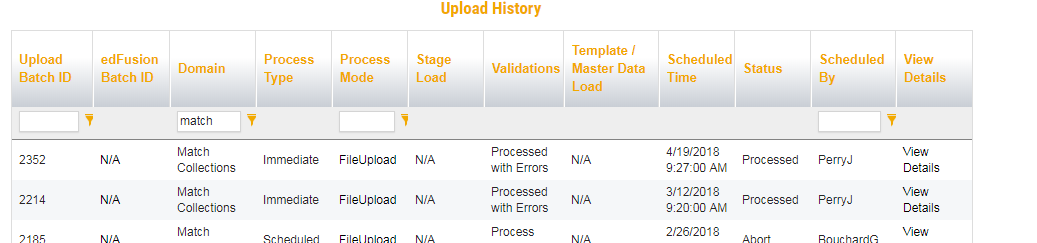
-
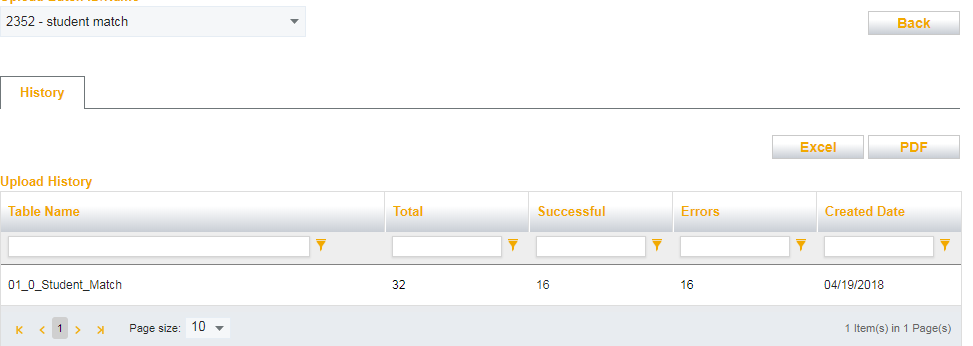
Click View Details far right
-
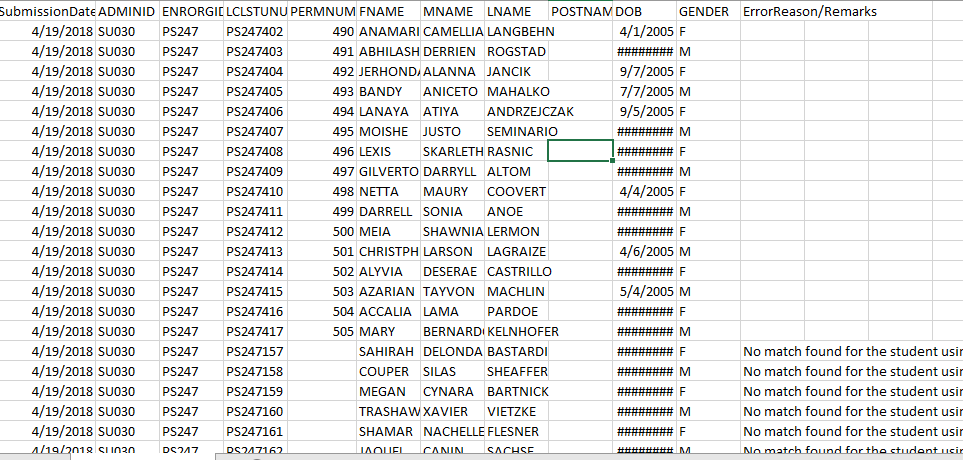
Double Click on value under Total (32 in this example), this will download a .csv file that will populate PermNumbers or EducatorIDs and provide Error Reason/Remarks for all unmatched, see sample data export below ***all fake data.
If you have any questions, please contact our helpdesk at AOE.SLDSSupportGroup@vermont.gov